

Email remains one of the central communication tools for professionals around the world. In 2025, workers using modern productivity platforms like Microsoft 365 were found to receive an average of 117 emails per day, a volume that contributes to frequent interruptions and fragmented focus during the workday.
With this level of daily email traffic, it makes sense that many people rely on Outlook’s scheduling features to plan messages ahead of time. Scheduling messages lets you control when your communication goes out rather than reacting immediately to every incoming mail. But after you hit Send Later, many users struggle to find those scheduled messages again.
It is not always obvious where Outlook stores scheduled emails. This lack of visibility can make it harder to edit or cancel messages before they send, potentially leading to miscommunication or missed opportunities. For professionals who use tools like Akiflow to organize work and protect focus time, understanding where scheduled emails are kept is an important part of running a more predictable and structured day.
In this guide, you will learn where to locate scheduled emails across desktop, web, and mobile versions of Outlook, how to manage them, and how to use scheduling in ways that support workflow priorities instead of disrupting them.
Key Takeaways
Outlook stores scheduled emails in different folders depending on the version: Outbox (classic desktop) or Drafts (new Outlook, web, and mobile).
You can edit or cancel scheduled emails by opening them from Outbox or Drafts before the scheduled time.
Outlook must be open at the scheduled time for desktop users. If it’s closed, the email will not be sent until the app is reopened.
Mobile versions have limited scheduling support, so managing scheduled emails is more reliable on desktop or web.
Common issues include unclear folder placement, account confusion, or forgotten delay settings.
Scheduling emails helps reduce distractions and supports time-blocking workflows for deep work.
Akiflow users benefit by linking tasks to scheduled messages, keeping communication aligned with planned focus time.
Why Scheduled Emails Are Hard to Find in Outlook
Unlike Gmail, Outlook doesn’t have a dedicated “Scheduled” folder that clearly shows which emails are waiting to be sent. Instead, where your scheduled emails live depends on which version of Outlook you’re using and whether you’re on desktop, web, or mobile.
This inconsistency is what causes confusion for many users. A scheduled message may be waiting in Outbox or Drafts, depending on the Outlook version, and will move to Sent Items after delivery. If you switch between devices or accounts, check which account and version you used to schedule the message before searching other folders.
For busy professionals managing multiple tools, projects, and inboxes, this disconnect adds friction. You should not have to waste time hunting for a message you already scheduled. The useful first step is to find the message and check its scheduled send time, then adjust it if your plans change.
In the next section, we’ll break down where scheduled emails are stored based on the version of Outlook you’re using.
How to See Scheduled Emails in Outlook (By Version)
Outlook handles scheduled emails differently depending on the version you’re using. This inconsistency is often the reason users struggle to find messages they’ve already queued. Below is a breakdown of where to look, based on the platform.
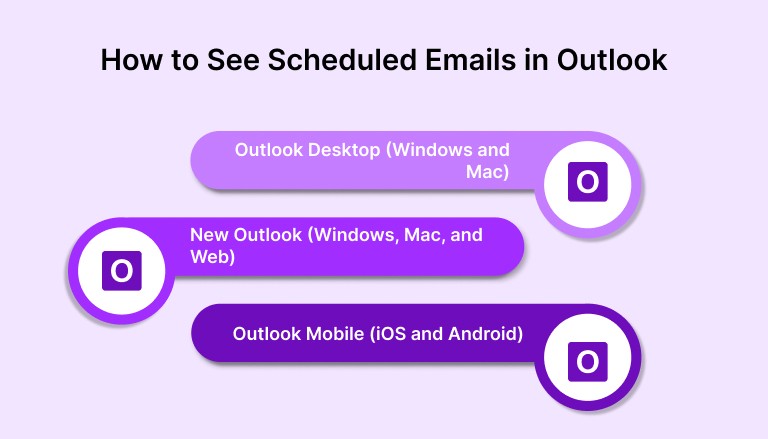
Outlook Desktop (Windows and Mac)
On the classic Outlook desktop app, when you schedule an email using the Delay Delivery option, the message is saved in the Outbox folder. It stays there until the scheduled time, and then moves to Sent Items once delivered.
If you don’t see your email in the Outbox, it may have already been sent. Also, keep in mind that Outlook must be open at the scheduled time in order for the message to send. If the app is closed, the email won’t leave the Outbox until you reopen it.
This version works best for users who keep Outlook running during work hours, especially if they rely on scheduled emails as part of a batch communication workflow.
New Outlook (Windows, Mac, and Web)
If you’re using the newer Outlook experience, scheduling behavior is slightly different. Emails you schedule using the Send Later option are saved in the Drafts folder until they’re sent. You can open them at any point to make changes, reschedule, or send immediately.
Once the delivery time is reached, the message is sent and moved to the Sent Items folder automatically.
This version offers a more intuitive workflow, especially for users who expect cloud-based behavior across devices. Since scheduled drafts stay editable, it’s easier to make last-minute adjustments without needing to find the Outbox.
Outlook Mobile (iOS and Android)
On most mobile versions of Outlook, scheduled emails are also stored in the Drafts folder. However, the ability to edit or reschedule may be limited depending on your app version and device.
Some users report that scheduled messages are harder to locate on mobile, especially if multiple accounts are connected. When in doubt, check the Drafts folder or use desktop or web versions to manage scheduled emails more reliably.
Must read: How to Merge Two Gmail Calendars Step by Step (2026 Guide)
How to Edit or Cancel a Scheduled Email in Outlook
Once you’ve scheduled an email in Outlook, there are a few simple ways to make changes before it sends. The steps depend on which version of Outlook you’re using.
Outlook Desktop (Windows and Mac)
If you scheduled an email using Delay Delivery, here’s how to edit or cancel it:
Go to the Outbox folder
Open the scheduled message
To edit, make your changes, then close and click Send again
To cancel, delete the email from the Outbox
To send it immediately, open the message and click Send, then remove the delay settings if needed
Note: Outlook must be open and connected to the internet at the scheduled time, or the message won’t send.
New Outlook (Windows, Mac, and Web)
For messages scheduled with Send Later:
Go to the Drafts folder
Open the scheduled email
You can edit, reschedule, or send immediately
After you make changes, click Send and choose a new time or send it now
This workflow is more flexible and cloud-reliable, which makes it easier to work across devices.
Outlook Mobile
On mobile, options are more limited:
Open the Drafts folder
Tap the scheduled email
Some app versions let you send immediately
Others may require you to finish editing and reschedule from desktop or web
If you rely on scheduling regularly, managing those changes on the desktop is the safer option.
Also read: Top Calendar and Task Apps to Use in 2026
Outlook Email Scheduling Not Working? Common Fixes to Try
If your scheduled email didn’t send or you can’t find it, here are common issues and how to fix them.
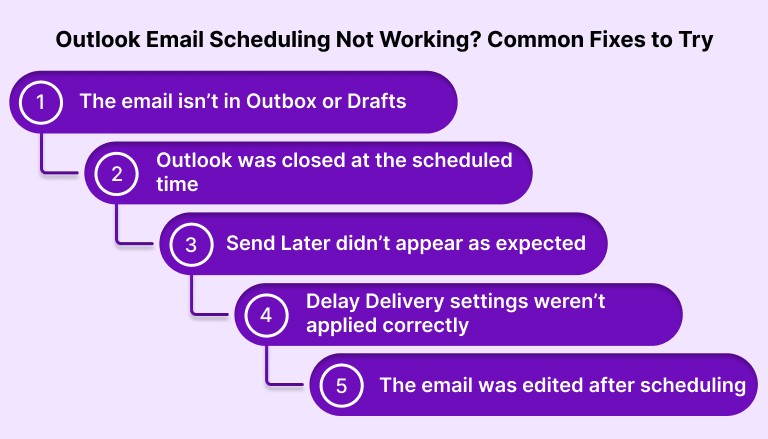
1. The email isn’t in Outbox or Drafts
Check Sent Items, it may have already been delivered
If you’re using multiple Outlook accounts, make sure you’re looking in the correct one
Try searching your inbox for the email subject line to locate it
2. Outlook was closed at the scheduled time
In the desktop app, Outlook must stay open and connected to the internet for the email to send
If it was closed, check the Outbox after reopening Outlook. If the message has already been sent but the recipient cannot find it, check the address and ask them to look in their spam or junk folder.
3. Send Later didn’t appear as expected
Some versions of Outlook Mobile and older builds may not fully support scheduling
Update the app or switch to web or desktop for more control
4. Delay Delivery settings weren’t applied correctly
Double-check that “Do not deliver before” was selected when scheduling from desktop
If the setting wasn’t saved, the email may have been sent immediately
5. The email was edited after scheduling
Editing a scheduled message may reset or remove the delivery time
Always confirm the schedule after making edits
Outlook Scheduling Tips for Busy Professionals
Once you know how Outlook handles scheduled emails, the next step is using that knowledge to improve how you plan communication. These tips are designed to support a more intentional workflow, especially if you’re already organizing your day with tools like Akiflow.
Use scheduling to protect deep work time
Instead of replying immediately, draft your response and schedule it for later. This helps protect focused work time. For genuinely urgent updates, use the immediate communication channel your team has agreed on.
Review scheduled emails before context switches
Block a 5-minute review session before lunch or the end of the day to check your scheduled emails. This gives you a chance to catch errors or rethink tone without breaking your flow during focused work blocks.
Sync tasks with message timing
If you’re using Akiflow, consider linking tasks to scheduled emails. For example, if you schedule a proposal to send at 3 PM, create a calendar block right before to review the document. This keeps tasks, time, and communication in sync.
Keep subject lines clear for easier tracking
When scheduling multiple emails across clients or projects, make subject lines searchable. It helps you spot the right message quickly if you need to make edits or verify status later.
Don’t rely on mobile for edits
While mobile is great for quick drafts, managing scheduled emails, especially edits or cancellations, is more reliable on desktop or web. Make a habit of double-checking from a full version of Outlook before the send time.
Final Takeaway
Outlook’s email scheduling feature is powerful, but it comes with quirks that can trip you up if you’re not familiar with where messages live or how to manage them across different versions.
Once you know the difference between Outbox and Drafts, and how each Outlook platform handles scheduled emails, it becomes much easier to trust the system and focus on your real work.
For professionals who already plan their day with tools like Akiflow, scheduling emails is another way to protect your time and communicate with intention. When used well, it’s not just a productivity trick. It’s a small habit that supports a more structured, focused workday. Try now!
FAQs
Q: Where do I find my scheduled Outlook emails?
A: Scheduled emails are typically stored in either the Outbox (in classic Outlook desktop) or the Drafts folder (in the new Outlook and web version). After they send, they move to Sent Items automatically.
Q: How do I see all scheduled emails?
A: Go to your Outbox or Drafts folder, depending on your version of Outlook. These folders contain messages that are queued to send at a later time and are still editable if they haven’t been delivered.
Q: How do I edit a scheduled email in Outlook?
A: Open the email from the Outbox (desktop) or Drafts (new Outlook or web), make your changes, and hit Send again. If you’re using Delay Delivery, make sure the updated schedule is still applied.
Q: How do I see my schedule in Outlook?
A: Click on the Calendar tab in Outlook to view your day, week, or month. You can also use Schedule View to see multiple team members’ calendars side by side.
Q: What is a schedule view in Outlook?
A: Schedule View is a calendar layout that shows multiple calendars in a horizontal timeline format. It’s useful for coordinating availability across teams or shared calendars.


