Calendar Automation: How to Save Hours by Letting Your Schedule Run Itself

12

For most professionals, the calendar has become a battlefield. It is packed with meetings, shifting deadlines, and constant task juggling. Whether you’re a founder planning product sprints or a remote marketer managing async check-ins, your day fills up before you even get started.
And the real problem? Too much of that time is lost to scheduling friction.
Instead of helping you focus, your calendar often creates more overhead. Blocking time manually, rearranging meetings, and finding space for deep work all take time. What should be a tool for clarity becomes a daily chore.
This is where calendar automation comes in. By letting technology handle the repetitive parts of scheduling, you can free up time, reduce context switching, and stay focused on what matters most.
Let’s look at what calendar automation is, how it works, and why more teams are turning to it in 2026 to reclaim their time.
Key Takeaways
Calendar automation reduces daily scheduling friction by managing tasks, meetings, and priorities without constant manual input.
Static calendars drain productivity, while automated calendars adapt in real time to your changing schedule and task load.
Professionals lose focus and momentum when manually adjusting their day. Automation helps reclaim time and reduce context switching.
Top features of calendar automation tools include smart task scheduling, deep work protection, meeting rescheduling, and time zone syncing.
Best use cases include startup founders, remote teams, freelancers, and teams with recurring meetings or routines.
Simple setup is key: Start with clear work hours, connect your tools, and layer in rules gradually for sustainable results.
Common mistakes to avoid: Over-automating, ignoring task priorities, skipping reviews, and not evolving your setup over time.
Recommended tools: Akiflow, Reclaim.ai, Motion, Clockwise, and Google Calendar with add-ons offer flexible automation for different needs.
The goal of automation is clarity, not control. You stay in charge of your time, while the system handles the busywork.
What Is Calendar Automation and Why It Matters in 2026
Calendar automation is the use of smart tools to help manage your schedule based on rules, preferences, and inputs from other platforms. Rather than manually blocking time, moving meetings, or juggling priorities, automated systems adjust your calendar in real time to match how you actually work.
It turns your calendar into more than just a list of events. It becomes an active tool that protects your time, reduces conflicts, and helps you stay focused.
Static Calendar vs. Automated Calendar
A static calendar requires constant manual updates. You input every meeting, block every task, and reschedule everything yourself. While this offers full control, it also creates extra work and increases the risk of missed events or overload.
An automated calendar adjusts for you. It uses your task list, meeting invites, availability, and preferences to keep your schedule aligned with your goals.
Key differences:
Static calendar: Manually updated, prone to double-booking, difficult to maintain during busy weeks
Automated calendar: Dynamically managed, protects focus time, adapts to shifting priorities
Why This Matters
For professionals who deal with incoming tasks, unpredictable meetings, or multiple priorities, manually managing a calendar adds unnecessary friction. Every time you rearrange your day, reschedule a meeting, or search for an open time slot, you lose focus.
Calendar automation solves this by:
Blocking time for focused work without needing to drag tasks into place
Updating your schedule automatically as meetings shift or priorities change
Reducing the mental overhead of constantly reworking your calendar
Helping you stick to your priorities even when your day gets busy
The result is a calendar that works for you, not against you. It supports your workflow instead of interrupting it.
Must read: 2025 Guide to the Best Calendar App for Entrepreneurs
Why Manual Scheduling No Longer Works for Busy Professionals
Even with the best intentions, trying to manage a modern schedule manually leads to unnecessary stress, lost time, and reduced focus. As workdays fill with constant interruptions, shifting timelines, and back-to-back meetings, old-school calendar management just can’t keep up.
Common Pain Points of Manual Scheduling
Busy professionals often run into the same problems when handling calendars without automation:
Double-booking and scheduling conflicts
Last-minute reschedules due to changing priorities
Overlapping tasks and meetings that interrupt flow
Time wasted switching between tools, calendars, and task lists
The Mental Load Is Real
Every time you adjust a meeting or try to squeeze in a task, your brain switches gears. These small shifts might seem harmless, but over time they chip away at your focus. Constant context switching increases mental fatigue and makes it harder to do deep, high-quality work.
You’re not just spending time rearranging blocks on a calendar. You’re using brainpower to make decisions your tools should be handling for you.
How This Impacts Productivity
When your calendar is reactive instead of intentional, your most important work gets pushed aside. You spend more time managing your schedule than actually executing on your goals.
Manual scheduling can:
Break momentum and reduce focus
Create stress as to-dos pile up with no space to complete them
Lead to burnout from a lack of control over your time
If your calendar feels like a puzzle you have to solve daily, it’s time to rethink how you’re managing it. Automation isn’t just more efficient; it gives you back the mental space to think, create, and lead.
Trending read: Top Calendar and Task Apps to Use in 2025
What Calendar Automation Can Actually Do
Calendar automation goes far beyond simply adding meetings to your schedule. At its best, it turns your calendar into an intelligent assistant that protects your focus, adapts to change, and removes the need to micromanage your day.
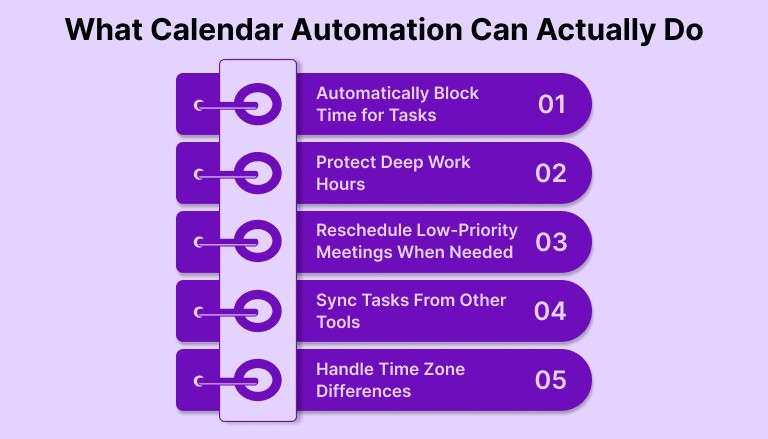
Here’s what it can handle for you:
Automatically Block Time for Tasks
Instead of dragging every task into an open slot, automation tools pull from your to-do list and schedule each item based on urgency, duration, and availability. This helps you move from planning to doing faster.
Protect Deep Work Hours
You can define your focus time and set preferences so that no meetings are scheduled during those hours. This ensures you have protected space for high-impact, uninterrupted work.
Reschedule Low-Priority Meetings When Needed
If a last-minute priority arises, smart tools can automatically shift flexible meetings to a later time without manual coordination. This keeps your day fluid without chaos.
Sync Tasks From Other Tools
Whether you capture tasks in Gmail, Slack, Notion, or a project management tool, automation platforms can bring everything into one calendar view. This creates a single source of truth, reducing context switching and missed tasks.
Handle Time Zone Differences
For remote teams, calendar automation can help compare availability across time zones and suggest meeting times. Check working hours and meeting duration before sending an invitation.
Suggested read: How to Add Tasks in Google Calendar
Best Use Cases for Calendar Automation
Calendar automation is not just a nice-to-have. For certain professionals and teams, it’s quickly becoming essential for staying focused and organized in the middle of fast-moving workdays. Here are some real-world scenarios where automation makes a measurable difference.
Founders Balancing Vision and Execution
Startup founders often bounce between investor calls, product decisions, team check-ins, and deep solo work. Manual scheduling can become a bottleneck fast. Automation helps by protecting time for focused work, shifting non-urgent meetings, and keeping the calendar aligned with top priorities.
Remote Teams Working Across Time Zones
When your teammates are spread across continents, coordinating meeting times becomes a logistical challenge. Automation tools can suggest optimal windows, avoid overlap with local focus hours, and ensure nobody is stuck in late-night calls.
Consultants and Freelancers Managing Multiple Clients
Independent professionals often deal with a mix of client meetings, deliverables, and admin work. Calendar automation helps block out time for billable hours, avoid client overlap, and adjust dynamically as new tasks or meetings come in.
Teams With Regular Syncs and Routines
If your team holds daily standups, weekly planning sessions, or recurring check-ins, automating these routines saves time and prevents errors. It also ensures those rituals happen consistently, without needing manual reminders or calendar nudges.
In short, calendar automation works best anywhere priorities shift faster than your calendar can keep up.
How to Set Up Calendar Automation Without Overcomplicating It
You don’t need to overhaul your entire workflow to start using calendar automation. The best approach is to begin with a few simple steps that immediately reduce friction, then build from there.

1. Define Your Work Hours and Focus Time
Start by telling your automation tool when you’re available for meetings — and when you’re not. Set boundaries around your working hours, ideal focus times, and preferred meeting blocks. This gives the system a structure to work with.
Example:
Available for meetings: 10 AM to 4 PM
Focus time: 8 AM to 10 AM, 2 PM to 3 PM
No meetings on Fridays after noon
2. Connect Your Calendar and Task Tools
Most calendar automation platforms integrate with tools like Google Calendar, Outlook, Notion, Slack, Gmail, and more. Connect these platforms so tasks and invites can flow into one place. This helps the system understand your real workload.
3. Set Basic Scheduling Preferences
Rather than creating dozens of complex rules, start with a few simple ones:
Avoid scheduling back-to-back meetings
Always leave 15 minutes between calls
Automatically block 1 hour of focus time each morning
Reschedule non-urgent events if a high-priority task is added
These small automations can reduce dozens of daily decisions.
4. Don’t Automate Everything at Once
The goal is not to hand over your calendar to an AI blindly. Use automation to handle predictable tasks, then manually adjust where needed. Start small, observe what works, and slowly layer in more rules as your needs evolve.
5. Use a Tool That Makes Setup Easy
A platform like Akiflow simplifies this entire process. It connects with your tools, pulls in tasks, and helps you time-block your schedule automatically; no complex setup or rigid systems required. You’re still in control; it just removes the heavy lifting.
Common Calendar Automation Mistakes to Avoid
Calendar automation is powerful, but it is not foolproof. Like any productivity system, it only works well when used intentionally. Many professionals dive in without a plan and end up frustrated or overwhelmed.
Here are some of the most common mistakes and how to avoid them.
1. Automating Everything With No Flexibility
It is tempting to let automation handle every block of time, but going too far can backfire. A rigid calendar that leaves no breathing room becomes just as stressful as a chaotic one.
Fix it: Allow space for unplanned tasks or breaks. Use soft rules instead of hard ones when possible, and leave buffer time between deep work and meetings.
2. Ignoring Task Priority
Some tools will schedule tasks simply based on availability, not importance. That can result in low-value work crowding out your top priorities.
Fix it: Make sure your automation system recognizes urgency or priority. Set categories or use tags to ensure high-impact work gets time first.
3. Letting the Tool Dictate Your Entire Day
Your calendar should serve you, not trap you. Relying too much on automation can make your day feel robotic or disconnected from your actual energy levels and goals.
Fix it: Use automation to support decisions, not replace them. Review your schedule regularly and adjust based on what matters most each day.
4. Skipping Review Time
If your calendar is changing dynamically, you need to review it regularly. Otherwise, updates can happen without you noticing, and things may fall through the cracks.
Fix it: Block 5 to 10 minutes each morning or evening for a quick calendar check-in. It keeps you in control and prevents surprises.
5. Not Adjusting As Your Workflow Evolves
A set-it-and-forget-it approach rarely works long term. As your workload shifts, your automation rules should too.
Fix it: Revisit your settings monthly or after major changes in your role or routine. Update meeting preferences, task rules, and focus blocks as needed.
Must read: Organize Your Workday Like a Pro: Best Planner & Calendar Apps 2025
Calendar Automation Tools Worth Exploring in 2026
The best calendar automation tool is the one that fits your workflow, not the one with the most features. Whether you’re a solo founder, remote worker, or part of a scaling team, here are five tools worth considering:
Akiflow
Akiflow combines task management and calendar scheduling into a single command center. It pulls tasks from tools like Gmail, Notion, Slack, and Asana, then helps you time-block your day with one click. Unlike tools that fully auto-plan your day, Akiflow keeps you in control while removing the friction of manual scheduling.
Why people use it:
Smart task-to-calendar integration
Fast task capture from multiple sources
Built-in time blocking for deep work
Best for: Professionals who want full control of their time without context switching.
Reclaim.ai
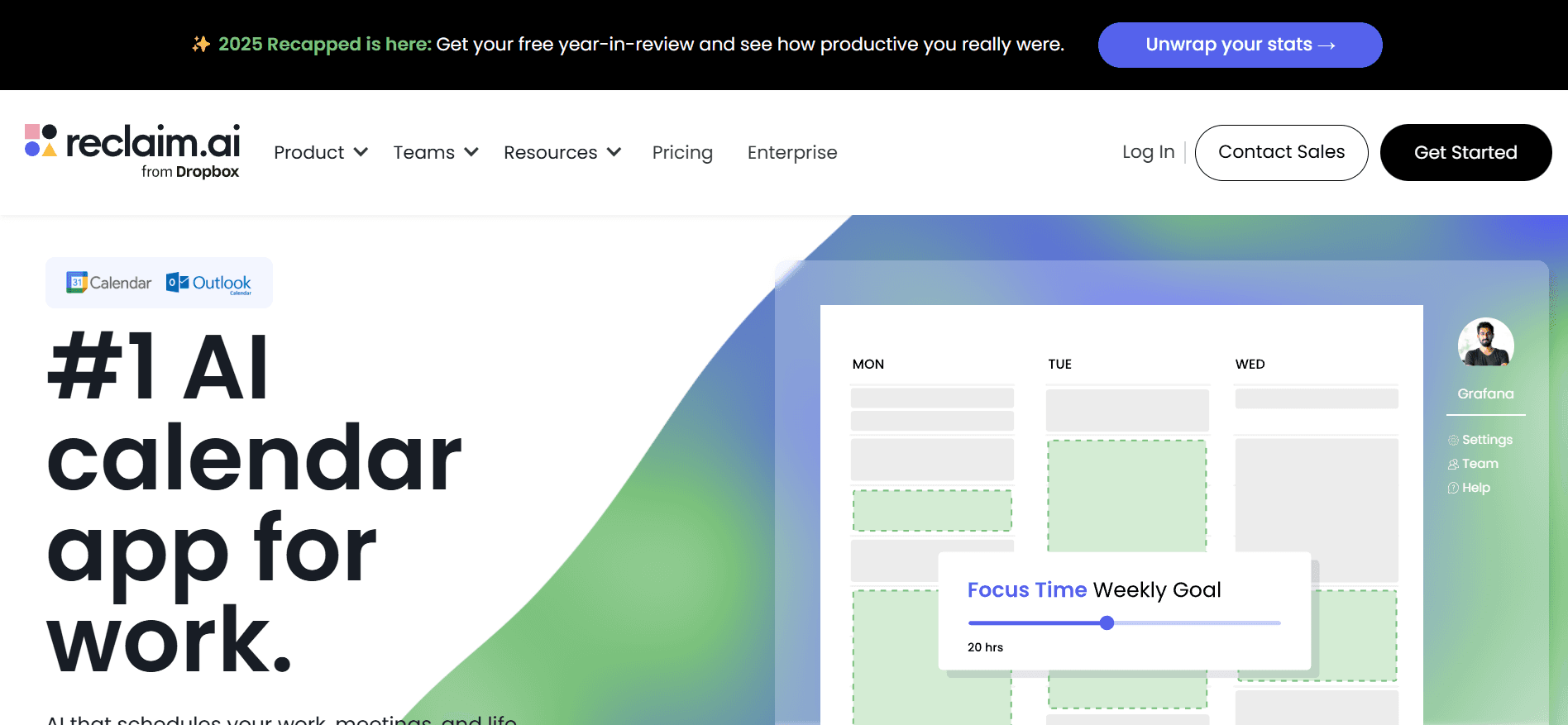
Reclaim automatically schedules habits, tasks, and meetings based on your preferences. It dynamically updates your calendar as availability shifts, keeping your priorities intact.
Why people use it:
AI-driven time blocking
Auto-rescheduling of flexible events
Balance between routines and collaboration
Best for: Teams or individuals with repeating habits and changing demands.
Motion
Motion turns your task list into a live, prioritized schedule. It automatically plans your day based on urgency, deadlines, and meeting times.
Why people use it:
Real-time task scheduling
Calendar and task list in one view
Helps prevent overload
Best for: Founders, freelancers, or managers who need structure but are short on planning time.
Clockwise

Clockwise optimizes team calendars by moving meetings to create larger blocks of focus time. It syncs with Google Calendar and integrates easily with Slack.
Why people use it:
Smart meeting rescheduling
Focus time protection
Works across team calendars
Best for: Remote or hybrid teams trying to reduce meeting fatigue.
Google Calendar with Add-ons
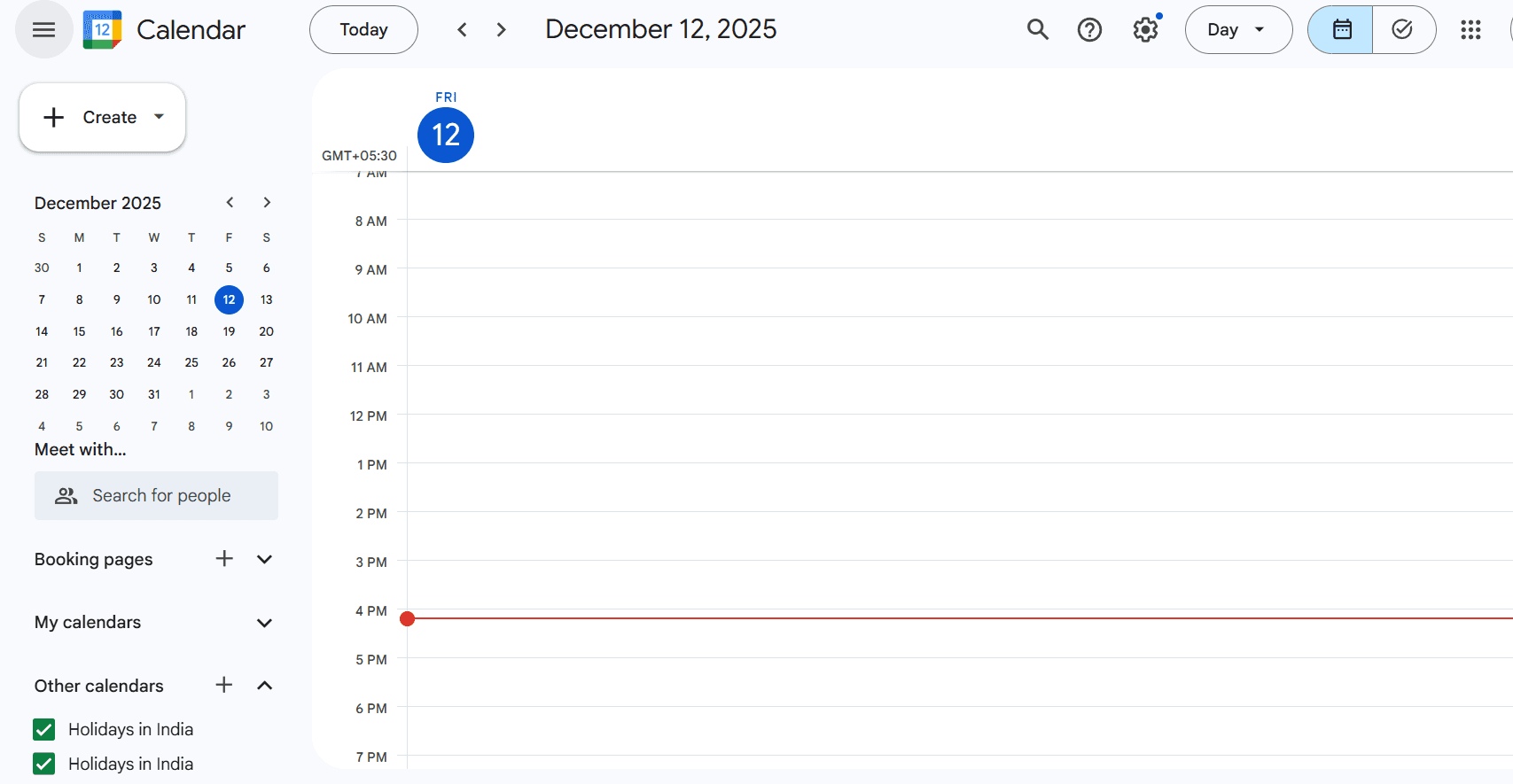
With a few strategic add-ons, Google Calendar can become a lightweight automation hub. Tools like Calendly, Zapier, and Google Tasks help automate meeting booking, reminders, and task syncing.
Why people use it:
Familiar interface
Flexible integrations
Easy to start small
Best for: Users looking to layer automation on top of an existing setup.
Final Thoughts
Calendar automation is not about turning your workday into a rigid system or removing your ability to decide what matters. It is about reducing the number of small decisions that eat away at your focus and energy.
By automating the repeatable parts of your schedule, such as task blocking, meeting buffers, or low-priority rescheduling, you gain back the mental space to do your best work. You stop reacting to your calendar and start using it as a tool that supports your goals.
You still choose what gets done. You just do it with more clarity, fewer distractions, and a system that helps you follow through.
If you are ready to start:
Identify your peak focus hours and protect them
Connect your tools so everything feeds into one place
Start small with automation rules that reduce friction
Review and refine your system as your work evolves
A platform like Akiflow is built for this exact approach. It helps you centralize your tasks, block time for deep work, and stay in control of your day without micromanaging every detail. Try Akiflow for free!
The real goal is not just efficiency. It is peace of mind.
FAQs
Q: What is the best AI calendar tool?
A: The best AI calendar tool depends on your needs, but top-rated options include Akiflow, Reclaim.ai, Motion, and Clockwise. These tools use automation and AI to intelligently block time, reschedule meetings, and prioritize tasks with minimal manual input.
Q: What is the best software for making calendars?
A: If you’re looking to create and customize calendars for planning or sharing, tools like Google Calendar, Microsoft Outlook, and Notion are popular choices. For more advanced automation and productivity, apps like Akiflow or Reclaim.ai combine calendar creation with smart scheduling features.
Q: Can you automate Google Calendar?
A: Yes, Google Calendar can be automated using built-in settings and third-party tools like Zapier, Reclaim.ai, or Akiflow. These tools can sync tasks, auto-schedule meetings, and adjust events based on your real-time availability and preferences.
Q: Is the Google Calendar API free?
A: Yes, the Google Calendar API is free for basic use with generous limits, making it ideal for personal apps or lightweight automation. However, for high-volume or enterprise-level usage, Google may charge based on usage tiers through their Cloud Platform.


