Reviewed October 17, 2026. Published by Akiflow. This comparison is based on the official documentation linked below, not a hands-on benchmark or an independent review.
Apple Watch and iCloud comparison
| Feature | Akiflow | Structured |
|---|---|---|
| Apple Watch | Native capture and completion | View and complete; no task capture |
| iCloud Calendar | Direct two-way event connection | Apple Calendar import |
Structured offers a native Watch app on watchOS 11 or later. Its documentation includes viewing and completing tasks, but says new tasks cannot be created on the Watch. Structured can import Apple Calendar events. That imported view should not be presented as equivalent to unrestricted two-way editing of those events.
Reviewed October 17, 2026. Native Watch apps, mirrored notifications, task-data sync and calendar subscriptions are different capabilities. Unconfirmed means the reviewed sources do not establish support, not that the feature is necessarily unavailable.
Official evidence: Structured source 1; Structured source 2. Akiflow Watch documentation; Akiflow iCloud documentation.
The difference that matters
A visible sequence can reduce the effort of deciding what comes next. A connected task inbox solves a different problem: finding all the commitments that need to enter that sequence. Choose based on whether the bottleneck is seeing the day clearly or assembling and rescheduling the work that fills it.
What this looks like in a real workday
For a daily routine built around a few predictable activities, Structured’s timeline may be the right level of detail. For a schedule reshaped by client meetings and incoming assignments, test how easily you can move work while keeping the underlying calendars consistent.
Where the trade-offs are
Calendar import is not the same as editing events in their original account. Structured’s documentation describes imported calendar items; Akiflow’s iCloud connection supports event changes. Test the event action you need, not just whether an event is visible.
Apple Calendar and Apple Watch
Structured: calendar support
Structured can import Apple Calendar events. That imported view should not be presented as equivalent to unrestricted two-way editing of those events.
Structured: Apple Watch
Structured offers a native Watch app on watchOS 11 or later. Its documentation includes viewing and completing tasks, but says new tasks cannot be created on the Watch.
Akiflow: iCloud events and wrist-based capture
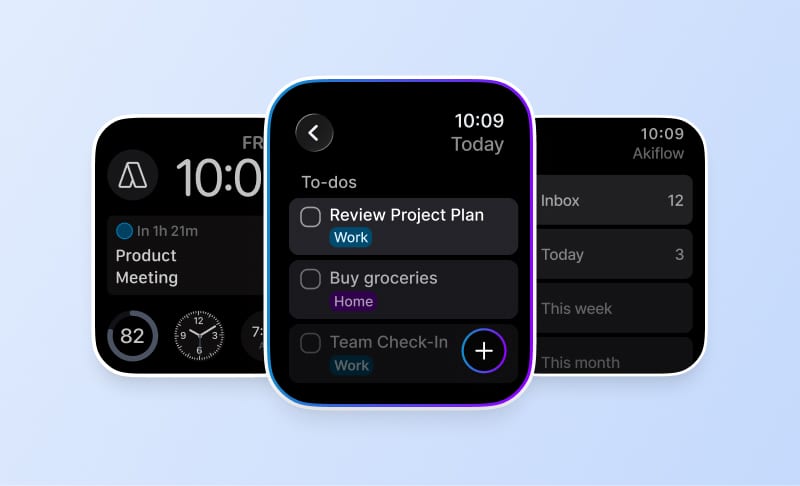
Akiflow connects directly to iCloud Calendar. Event changes can sync in both directions, subject to calendar permissions. Scheduling a task does not automatically export it: use Lock to publish a task or Time Slot to an editable calendar. Calendar updates are periodic, not an instant-sync guarantee.
The Apple Watch companion supports task capture by text or dictation, completion and reopening, and views of what is current or next. It requires watchOS 10 or later and a paired iPhone running Akiflow 2.83 or later. It is not a full scheduling editor: Aki, natural-language scheduling, and task editing, rescheduling or deletion are not available on the Watch.
See the iCloud Calendar guide and Apple Watch guide for setup and limits. The Akiflow fall update also covers Travel Time and the desktop redesign.
How to make the decision
Bring in a real calendar event, change its time and capture an unexpected task from your wrist. These three actions reveal more than a generic “calendar support” checkbox.
Before changing systems, use a normal busy day rather than an empty demo calendar. Include one changed meeting, one task that takes longer than expected and one new commitment. A useful workflow should make the resulting trade-offs clear without requiring you to maintain conflicting copies of the same work.
Cost and buying considerations
Compare the plan that includes the features you actually need, the billing period, and whether the cost is per person or per workspace. Do not treat a calendar subscription, a native app and a two-way integration as interchangeable paid features.
Check Akiflow’s current pricing before purchasing. This article does not reproduce old promotional prices or unsupported star ratings.
Official sources
Frequently Asked Questions
When might Structured’s visual timeline be the right level of detail?
A routine built around a few predictable activities may benefit from a clear timeline of the day. If the difficulty is seeing what comes next, that may be the relevant need. If work must first be assembled from several sources, evaluate task intake as well as the visual sequence it eventually enters.
What should I check when meetings frequently change my day?
Test how easily you can move work while keeping the underlying calendars consistent. A schedule reshaped by client meetings and incoming assignments needs more than an attractive timeline. Bring in a real calendar event and change its time, then assess the actual action rather than relying on a general calendar-support checkbox.
Is importing an Apple Calendar event the same as editing it?
No. An imported view does not by itself establish unrestricted editing of the event in its original account. Structured documents imported calendar items, while Akiflow’s iCloud connection supports event changes. Test the particular event action you need and whether the original calendar reflects it, rather than checking only that the event is visible.
Can I capture a new task in Structured on Apple Watch?
Structured’s current Watch help says task creation is not supported there, although it supports viewing and completing tasks. Akiflow’s Watch companion supports capture through text or dictation, with planning handled in the main app. Compare those specific actions if an unexpected commitment needs to be recorded from your wrist.
What are the limits of Akiflow’s Watch capture for planning?
Text or dictation captures the task, but it does not provide natural-language scheduling on the Watch. The companion also supports completion, reopening and current or upcoming information. Use the main app for editing, rescheduling or deleting tasks, rather than expecting wrist-based capture to provide a full editor for the day’s plan.