Akiflow's fall update: iCloud Calendar, Apple Watch, desktop redesign and Travel Time

6
Key takeaways
Connect iCloud Calendar to manage Apple calendar events alongside your tasks, with two-way event sync.
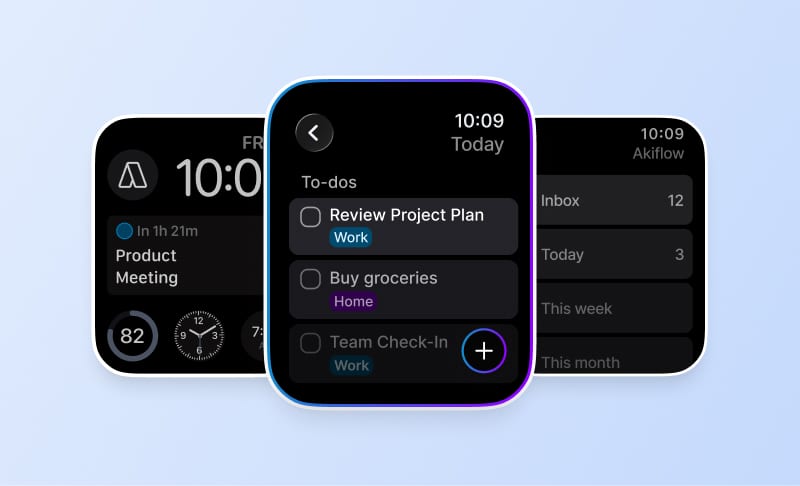
Capture and complete tasks from Apple Watch, and see what's happening next on your watch face.
A redesigned desktop experience gives your calendar more room. Travel Time helps you plan the journey before a meeting.
Your calendar shouldn't make you choose between work and the rest of your life. And a task shouldn't disappear just because you thought of it away from your desk.
Our fall update brings two much-requested additions to Akiflow: iCloud Calendar and an Apple Watch app. Alongside them, we've refreshed desktop and web and added Travel Time for in-person appointments. Together, these changes make it easier to capture a commitment, see where it fits, and leave enough time to get there.
iCloud Calendar, right beside your tasks

If your personal calendar lives in iCloud, you can bring it into the same plan as your work. See an appointment alongside a project deadline, or make room for a family commitment before you fill the afternoon with tasks.
Akiflow's iCloud Calendar integration supports two-way event sync. Create, edit, reschedule or delete an event in Akiflow, and the change syncs to iCloud. Changes in iCloud come back to Akiflow too. Calendar permissions still apply: a read-only calendar stays read-only.
Want a task to appear in iCloud Calendar? Use Lock to place it on a calendar you can edit. Simply scheduling the task inside Akiflow does not export it.
How to connect iCloud Calendar
Sign in to your Apple Account. Under Sign-In and Security, generate an app-specific password. Two-factor authentication must be enabled.
In Akiflow, open Settings > Calendars > Add calendar > iCloud Calendar.
Enter your Apple Account email and the app-specific password, connect, then return to Akiflow and allow time for the first sync.
This connects calendars stored in iCloud, not Apple Reminders, iCloud Mail or calendars stored only on your device. Sync runs periodically rather than instantly. The iCloud Calendar setup guide covers the details and troubleshooting.
A task app for your Apple Watch
Remember something on your way out? Tap + on your Watch, dictate or type it, and get back to what you were doing. The task goes to your Akiflow Inbox so you can plan it later on your phone or computer.
You can browse your lists, complete or reopen tasks, and add an Akiflow complication to your watch face. It shows a current or upcoming task, event or Time Slot, so checking what's next doesn't have to mean opening your phone.
The Watch app is a companion, not a replacement for the planner. It requires watchOS 10 or later and Akiflow 2.83 or later on a paired iPhone. Captures made away from your iPhone are queued until the devices reconnect. Task text is saved as entered; dictating a date doesn't schedule the task, and Aki isn't available on the Watch.
Update Akiflow on your iPhone, then install it through the iPhone's Watch app if it hasn't appeared automatically. Open Akiflow on your iPhone once for the first sync. See the Apple Watch guide for setup and supported actions.
A cleaner desktop, with more room to plan
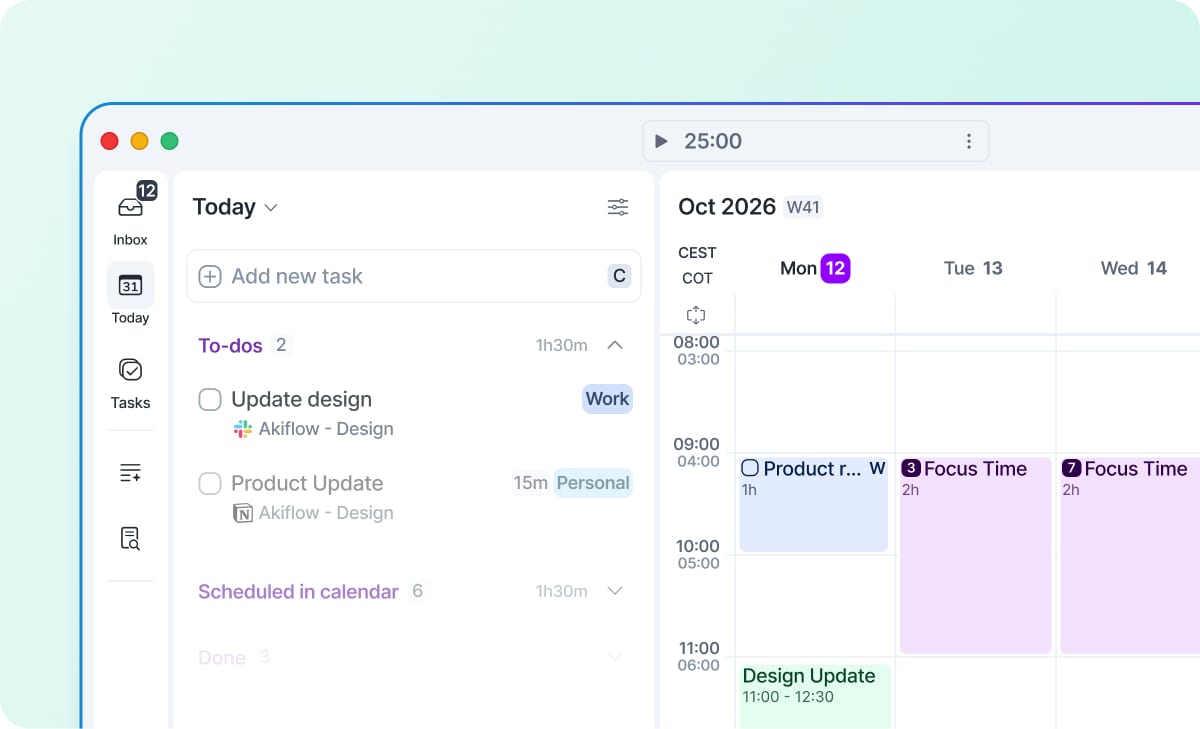
The desktop and web redesign puts Inbox, Today and Tasks at the top of the sidebar. You can pin up to five sections, projects or tags for faster access, and group your Inbox by source or project.
Search has its own redesigned page. Meet With and Share Availability move into the calendar header, freeing the space previously used by the right sidebar. Responsive and Dynamic calendar views help the schedule fit the space you have and the days ahead.
These are practical changes to the places you use repeatedly: finding a task, processing an Inbox and looking at the week. The first-open tour points out what's moved. Our release notes cover the rest of the redesign.
Plan the journey, not just the meeting

A 2 p.m. appointment isn't really a 2 p.m. commitment if it takes half an hour to get there. Add Travel Time from an event's location controls and Akiflow places a block before it. Choose a driving, walking or cycling estimate, or enter your own duration.
The block moves with the event. Google Calendar and Outlook receive a separate busy event; iCloud uses the event's native travel-time setting. With the relevant event reminders enabled, Akiflow can also notify you when it's time to leave.
You add Travel Time yourself. Estimates don't include live traffic or recalculate automatically, and the feature doesn't move conflicting meetings. It works for timed events on editable calendars, not all-day events or locked tasks and Time Slots. Read the Travel Time guide for provider-specific behavior.
Try one change in your next day
Start with the part of your routine that needs it most: connect your personal iCloud calendar, capture a task from your wrist, or reserve the journey before your next appointment. Open the updated app to explore, or download Akiflow for your device.
Frequently asked questions
Does Akiflow work with iCloud Calendar?
Yes. You can connect iCloud Calendar and sync events in both directions. Use an Apple app-specific password, not your normal account password. Apple Reminders and iCloud Mail are separate services and aren't imported by this connection.
Can I use Akiflow on Apple Watch without my iPhone nearby?
You can browse cached lists and capture or complete tasks while disconnected. Changes sync when the Watch can reach your paired iPhone again. The Watch app still requires that iPhone for setup and syncing.
Can I schedule tasks by speaking to my Watch?
Watch dictation captures the words as task text. It doesn't interpret dates or assign a time block. Plan the captured task later in Akiflow on your phone or computer.
Does Travel Time change with traffic?
No. It uses the duration saved when you add or update it. Allow extra time for traffic, and update the duration yourself when your plans change.
Where can I check which version I need?
The Watch app needs Akiflow 2.83 or later on iPhone and watchOS 10 or later. Consult the 2.83 release notes and the linked feature guides for rollout and platform details.


