7 days free with Aki. Cancel anytime.
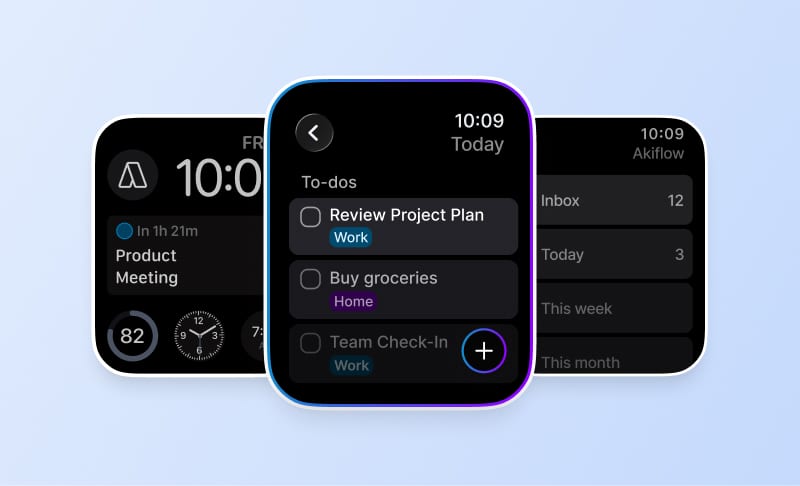
Akiflow for Apple Watch
Capture a task before you forget it. Check off something you have finished. See the next commitment without opening your phone. Akiflow brings these quick actions to Apple Watch, while your iPhone and computer remain the place to plan your day.
At a glance
The Watch app is included with Akiflow for iPhone. It requires watchOS 10 or later and Akiflow 2.83 or later on a paired iPhone. You can capture, complete and reopen tasks; your watch face can show a current or upcoming task, event or Time Slot. It is not a standalone calendar or an AI assistant on your wrist.
A task manager for the moments between meetings
Catch an idea. Tap + and use your Watch's available dictation, scribble or keyboard input. The task goes to your Inbox, ready to organize later. For example, capture a follow-up while leaving a meeting, then give it a time block when you return to your desk.
Finish a small task. Open a task and tap its checkbox, or swipe right in a list. You can reopen a task too. Your Inbox, Today, This week, This month and All tasks lists follow the organization on your iPhone.
Know what is next. Add an Akiflow complication to a compatible watch face. It shows the current or next item today with a countdown. The circular complication is a shortcut into the app.
Install Akiflow on your Apple Watch
Update Akiflow on your iPhone and sign in. Check that your Watch runs watchOS 10 or later.
Open the Watch app on your iPhone. Under Available Apps, tap Install beside Akiflow if Automatic App Install has not already installed it.
Open Akiflow on your iPhone, then on your Watch, and let your lists sync.
For the watch-face shortcut, touch and hold your watch face, choose Edit, select a complication slot and choose Akiflow. See the Apple Watch setup guide for supported complication formats and troubleshooting.
Capture now. Plan when you are ready.
Watch input saves the words you enter. Saying a date or time does not schedule the task. Editing, rescheduling and deleting tasks remain on your phone or computer; Aki and Siri are not supported in the Watch app.
Already keep your events in Apple's calendar? Pair this with the iCloud Calendar integration to plan those events alongside your tasks in Akiflow. The calendar connection and Watch installation are separate setup steps.
Get Akiflow for iPhone or read the fall update announcement.
Frequently asked questions
What do I need to use Akiflow on Apple Watch?
An Apple Watch running watchOS 10 or later, paired with an iPhone running Akiflow 2.83 or later. Sign in on the iPhone; there is no separate Watch sign-in.
Can I use it when my iPhone is not nearby?
You can browse previously synced lists and capture or complete tasks while disconnected. Changes queue on the Watch and sync when it can reach your paired iPhone again. The app still needs an iPhone for setup and syncing.
Does Watch dictation schedule my task automatically?
No. Dictation saves the words as task text in your Inbox. Dates, times, projects and tags are not interpreted. Plan the task later on your phone or computer. Aki is not available on the Watch.
Can I browse or edit my calendar on Apple Watch?
There is no calendar browser on the Watch. A complication or notification can open read-only event and Time Slot details. Edit your schedule on your phone or computer.
Can I complete and reopen tasks?
Yes. Swipe right on a task in a list or use the checkbox in task details. Completing a recurring task completes that occurrence; completing a parent task does not automatically complete its subtasks.
Why does the Watch ask me to open Akiflow on my iPhone?
It has not received your lists yet. Open Akiflow on the paired iPhone, check that you are signed in and keep the Watch nearby for the first sync. Check the required app and watchOS versions if it still does not connect.